|
|

|
|

|
|

|
|
|
|
|
|
|
|
|
|
|
|
This is a guest post by Pavlok friend Steve from Startup Black Belt
I’m a busy guy.
A startup CTO, startup consultant, father, husband, and homeowner… There are a lot of things demanding my time. Employees, clients, writing code, exercising, family time and more. It all adds up.
As business keeps growing, the one thing that’s consistently been falling by the wayside is my writing. And that kind of sucks.
I like writing. It helps clear my head.
It keeps me mindful of different aspects of my different businesses, and I find it generally boosts my productivity for whatever reason. Plus, it helps boost my consulting business and builds up my tribe.
It’s important, and I have to make the time for it consistently.
I’ve already used my Pavlok to create an extra hour or so in my day by helping me actually wake up early. It also reminds me every day to switch to my standing desk — helping me stay a bit more active.
But how can it remind you to write?
It’s a technically challenging thing to do. There’s no physical gesture that makes writing at a MacBook look differently from screwing around on Facebook.
It’s not easy to know when I don’t do something every day unless I physically check in saying I did it, and that’s not my style. It’s another task to do in an already stacked day.
So how can we make this work? How can I shock myself into writing every day without actually doing some boring admin work every day?
After some trial and error, I’ve found the solution.
Before the system is revealed, let me explain how I write as it may be different from how you write.
First off, I use Pages on my MacBook.
I don’t really like Google Docs to write since it’s in the browser, and that can lead to distraction. Yes, I’m aware that I can blacklist sites when I go to write, but again, more admin work than I’d like to deal with. Pages works for me.
Second, I use Dropbox to store it and share it with the team that will help edit and share everything to the world on my blog, my Entrepreneur column, or anywhere else. Yes, I realize that I can use Google Docs for this, and I personally don’t want to. See above.
With that 2 step approach, I can write anywhere at any time without any excuses. As soon as I get some internet and my Dropbox syncs up, it’ll check in with my system and not shock me.
Here’s how to do it.
Keep A Record Of All Writing With IFTTT And Google Sheets
Since I put my articles into Dropbox, I can use IFTTT to write a row to a spreadsheet on Google Sheets. It’s essentially a log book that updates every time a new file is created in one of my writing folders.
There are two specific folders that I care about: Drafts (everything I’m working on that’s unfinished) and Unpublished (all finished work that needs to be published somewhere.) If a new file shows up anywhere in these folders, it means I did some writing for the day. Log it in Google Sheets.
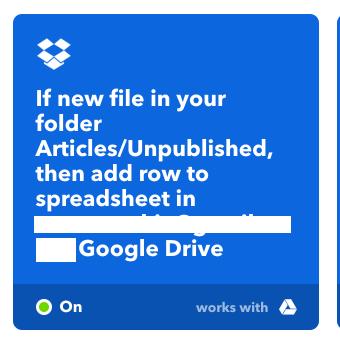
(Here’s my unpublished trigger.)
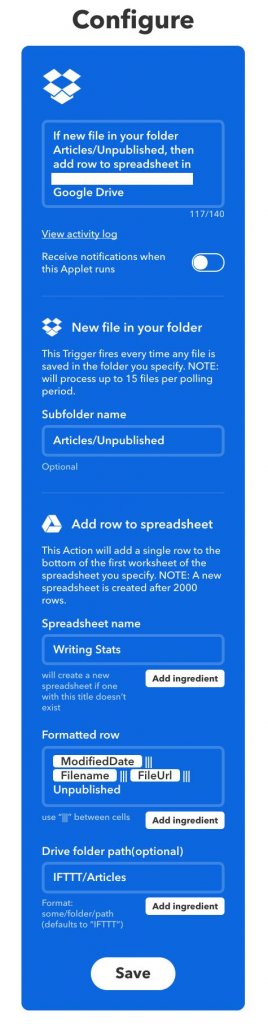
(And the detail.)
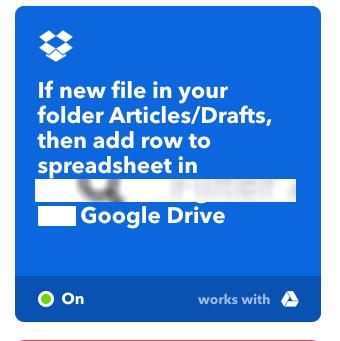
(Here’s my drafts trigger.)
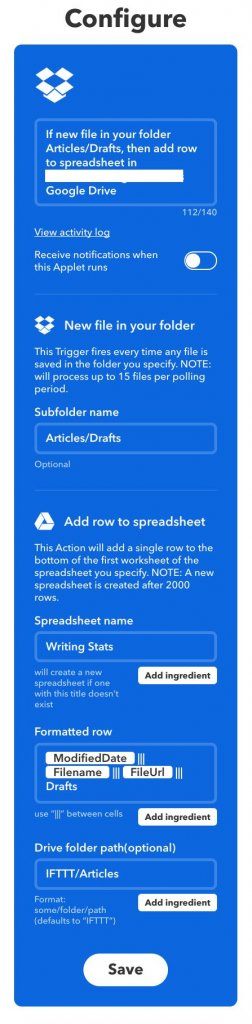
(And the detail.)
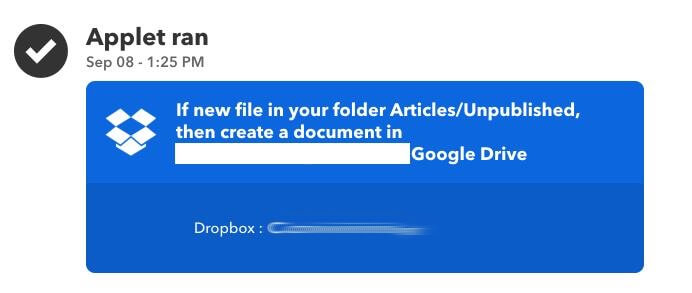
(Here’s IFTTT running to create the sheet)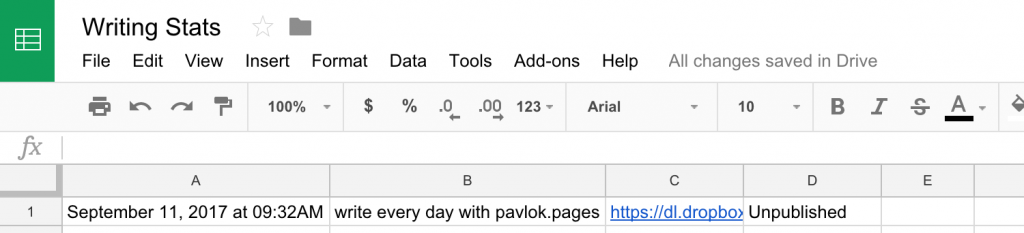
(Here’s what the sheet looks like. 100% created and maintained by IFTTT)
NOTE: For this to work, there has to be at least one row in the sheet. It won’t work without a row to check, so add one in manually if you want it to start on day 1.
This is a fairly straight forward process: Check the latest row every day and send me an email if there was no new row added. That means I didn’t write.
My goal is to write every weekday by 4 pm EST, so that’s when I check.
For this part, you need to use Google Scripts on the sheet.
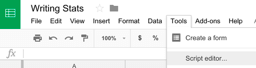
(Here’s how to get to the script editor)
You have a script that checks the last row of the sheet and looks at the day. If that date isn’t today’s date, it means you didn’t write today. In that case, it sends an email.
function myFunction() {
var now = new Date();
var day = now.getDay();
var hours = now.getHours();
if ((day < 6) && (hours >= 16) && (hours <= 17)) {
// Get the dates.
var ss = SpreadsheetApp.getActiveSpreadsheet();
var sheet = ss.getSheets()[0];
var lastRow = sheet.getLastRow();
var formatDate = sheet.getRange(lastRow, 1).getValue().replace(‘at ‘, ”).replace(‘AM’, ”).replace(‘PM’,”) + ” GMT-0400″;
var lastWrite = new Date(formatDate);
var lastWriteDate = lastWrite.getFullYear() + “-” + lastWrite.getMonth() + “-” + lastWrite.getDate();
var nowDate = now.getFullYear() + “-” + now.getMonth() + “-” + now.getDate();
if (nowDate > lastWriteDate) {
// Email out.
MailApp.sendEmail(“YOUR@EMAIL.COM”, “You didn’t write today.”, “Get on that.”);
}
}
}
For this part to work, you have to schedule it to run. I have it running every weekday between 4 pm and 5 pm, so it will zap me at the end of the day if I forgot to write.
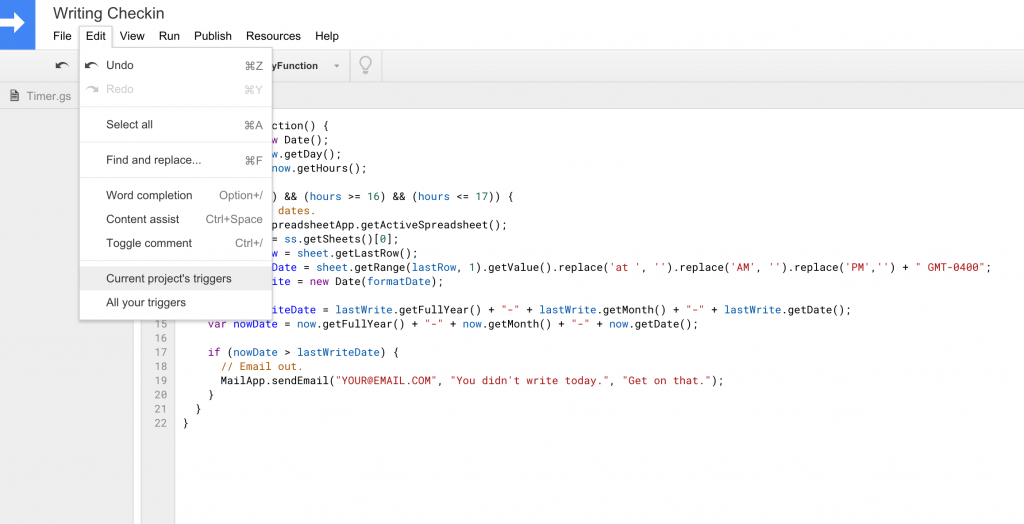
(This is how you create the trigger.)
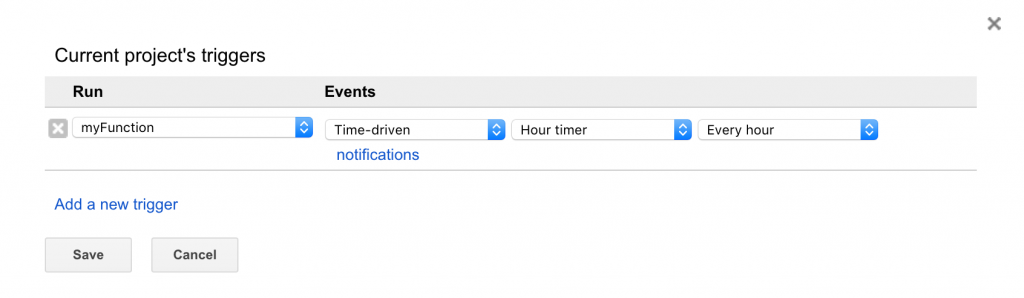
(This is what you set the trigger to.)
The last step is to get back into IFTTT with a script that checks for that “You didn’t write today…” email and use it as a trigger for Pavlok to zap.
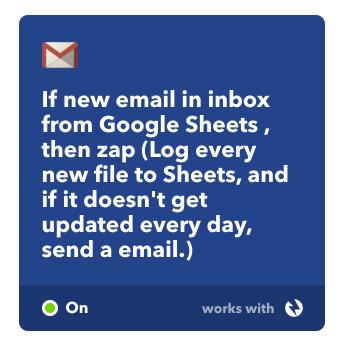
(Here’s my Pavlok trigger.)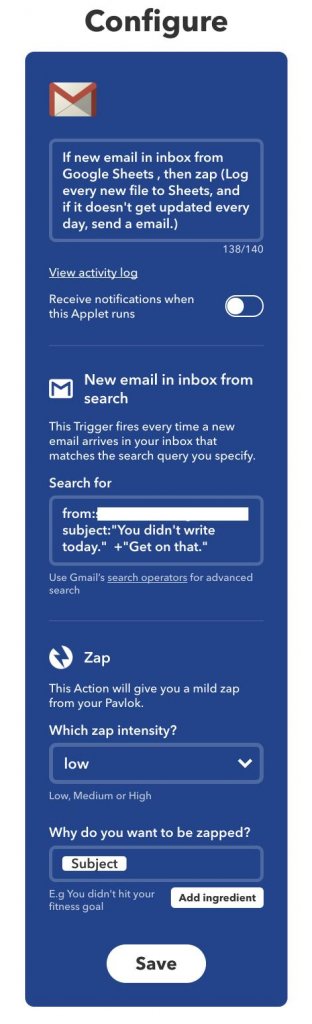
(And the detail.)
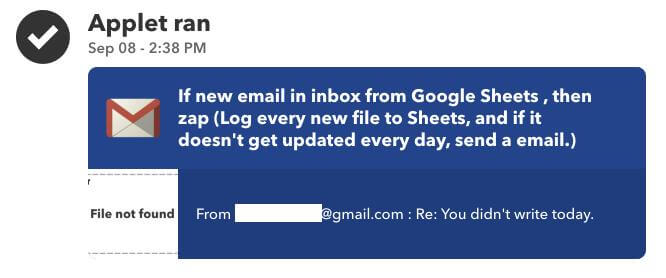
(Here’s IFTTT triggering a zap.)
And that, my friend, is how I’m forcing myself to write. After a few 70% shocks to the wrist, this will be yet another positive habit that sticks.
This can be used for more than traditional writing too.
Want to write code every day? Sync up a folder that stores your code.
Want to post on Instagram every day? Use Instagram posts to log to Sheets instead of Dropbox.
Want to work out every day? Use your chosen fitness tracker to log to Sheets instead of Dropbox.
I can think of about a hundred others. You’re only limited by your imagination and desire to build a new habit.
It might seem like a lot of steps to go through to make sure I write consistently, but if you think about the one-time setup cost vs. the ongoing benefits of building such a productive habit, it’s a no-brainer.
Want to make writing a habit? Get your Pavlok today.