
The biggest thing to happen to habit change since Pavlok!
What the Pavlok/IFTTT integration can do
Ever since launching Pavlok, the most common question people ask has been “Can it tell when I’m doing my bad habit?” and the answer has always been “for breaking bad habits Pavlok doesn’t need to know, YOU need to know”. That is absolutely true – habit awareness and self-administering the zap are the best way to break a bad habit rapidly and permanently.
But what about those habits you don’t realize you’re doing, so you can’t break it manually? Or those situations where you want to use Pavlok’s haptic feedback to stay on task, remember important information, or just alert you when something happens? Pressing the button on the Pavlok releases a zap, but what about all of the other types of haptic feedback that Pavlok uses (beep, vibration and LED lights)?
Pavlok can now integrate with a service called If This Then That (IFTTT)
Our software team has worked tirelessly to create an integration that will allow you to use every single feature of Pavlok with IFTTT – beep, LED lights, vibration and even zap. It’s been difficult getting all of the features to work well, and there has been a lot of trial and error. We’ve known all along that Pavlok had the ability to be so much more than just a habit breaking tool, and today we’re unveiling a whole new set of features that will let you use Pavlok in “automatic mode”.
You can now connect your Pavlok account with an IFTTT account, opening up a world of possibilities for automatically triggering feedback on your wrist from Pavlok – not just zap. Using IFTTT “recipes” you can create triggers based on data from other devices or your online activity that will automatically trigger Pavlok’s beep, vibration, LED or electric stimulus – at whatever strength level you want!
You can now integrate Pavlok with other connected devices.
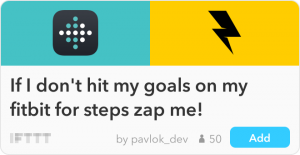
Want a vibration from your Pavlok when you reach a fitness goal, or an automatic zap when you don’t? Since many popular fitness trackers are also on IFTTT (like Fitbit and Jawbone Up) you can now trigger Pavlok based on your fitness activity. Want the ultimate in tough love? Connect your GE smart fridge with Pavlok to receive a zap if you open your refrigerator door late at night, and receive a push notification asking “are you sure you’re hungry?”.
Pavlok can automatically remind you to perform important tasks (or behaviors).
Need a reminder to get up from your desk and walk around every hour? Want to be reminded to get to bed on time, and receive a zap if you do something like go on a time-wasting website after bedtime hours? All of that and more is now possible with the Pavlok IFTTT integration. Integrate with other powerful services like Rescuetime or your Google calendar to stay healthy, focused and productive.
Never miss a critical update
Missed an important meeting, or that email that contained time sensitive information? Never have it happen again with Pavlok and IFTTT. Connect Gmail, Google calendar and many other programs to receive a notification on your wrist when you receive an important email, if there is an important meeting or even if you just want to know when that package you’re waiting on is delivered.
Getting started with IFTTT and Pavlok
1. Go to ifttt.com/pavlok.
2. Press the “Connect” button.
3. Sign in or Sign up for IFTTT (if you’re not alreay signed in).
4. Press “Connect” again (if you just signed in/signed up).
5. Sign in to Pavlok using the same login info that you signed in to the Break Bad Habits app with (if you don’t already have it, get it on Google Play for Android or Apple App store for iOS).
6. You’re all set! Make some recipes or add some of the popular recipes!
Here’s a walkthrough of creating a recipe:
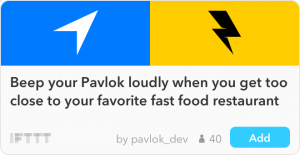
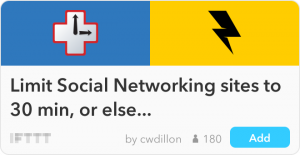
Example recipes to get you started (click on any to go right to the recipe):

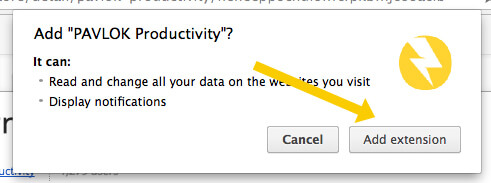
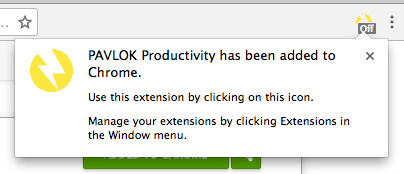

 Create a to-do list that you’ll actually do: Use the integrated to-do list to map out your tasks for the day, and then use the pomodoro timer feature to set a timer for each task. Complete more by breaking your task into manageable chunks of time that help you focus intensely. If you’re a Pavlok user, connect your Pavlok to get a vibration when you complete your task!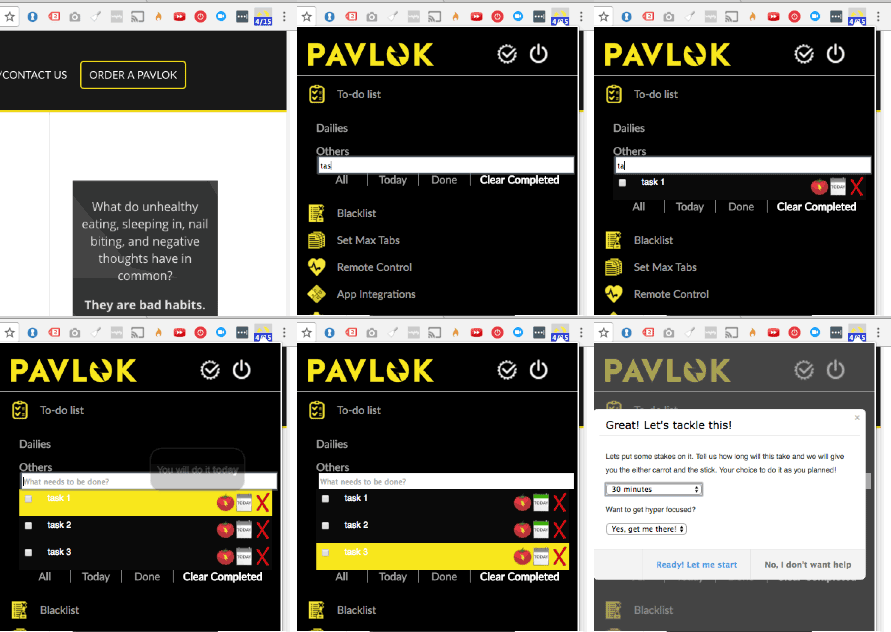
 Blacklist unproductive sites: Tired of wasting time online, but don’t realize when you’re mindlessly browsing? Catch yourself checking just one… more… status update? When you blacklist a site, this feature sends a browser notification when you go there reminding you to leave. And with a Pavlok, you can set it to zap you if you don’t leave right away!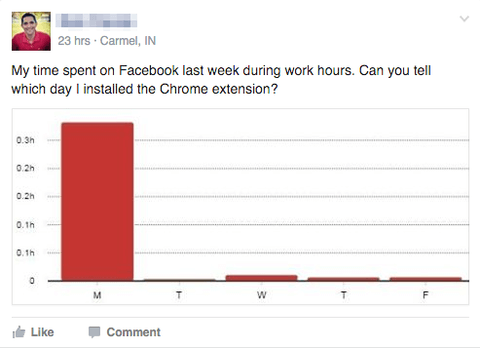
 Stay focused on the task at hand with tab limits: Too many tabs open = lack of focus. Prevent yourself from wandering off task with another browser window by setting a tab limit, and receive a warning notification if you open too many tabs. If you’re a Pavlok user, you can set the chrome extension to zap you when you open too many tabs!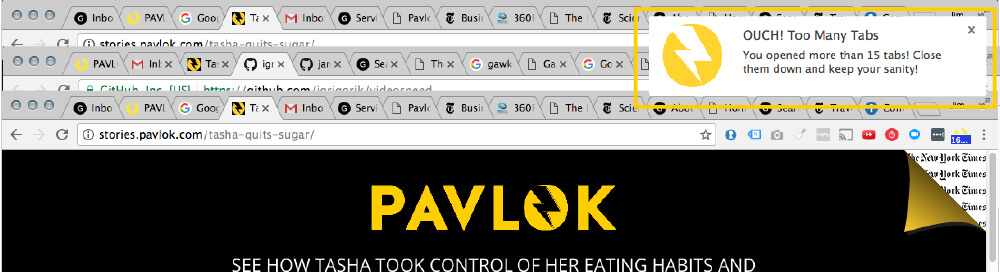
 Rescuetime integration: RescueTime tracks what sites and programs you use throughout the day. You tell it what types of activities are productive and unproductive, and it will give you a “productivity score” based on what programs you run and the sites you visit throughout the day. So we’ve integrated Pavlok and if your productivity score gets low enough (and you have a Pavlok connected) you get zapped!
 Auto-zap: Want to work on breaking a bad habit automatically when you aren’t at your computer? With auto-zap, you can set a timer for how long you want to do a training session, and how often you want to be zapped. Then just click go and you can walk away while the extension automatically administers zaps to your Pavlok.
 ToDoist Integration But it will also tell you when to take a break! Another great feature we have is ToDoist integration. If you use ToDoist, it can sync your tasks between the chrome extension and Todoist dashboard. Look for tasks you add via Pavlok extension in your ToDoist inbox, and watch as new Todoist dashboard tasks show up in your Pavlok extension!
 Coach Assistant Looking for a bit more help and direction in getting and staying on track? If you go to Advanced Options > Coach Assistant > Click checkbox to turn on, Pavlok will both remind you and break down your tasks, inviting you to take pomodoros on your todo list.